Pick up any gadget on your desk right now – your smartwatch, your multimeter, your old calculator – and there’s a good chance a display is staring back at you. But not all displays are built the same way, and picking the wrong one for a project is one of the most common (and most annoying) mistakes makers make. Choose an OLED when you needed an e-paper display for battery life, or a character LCD when you actually needed graphics, and you’ll be redoing your whole enclosure.
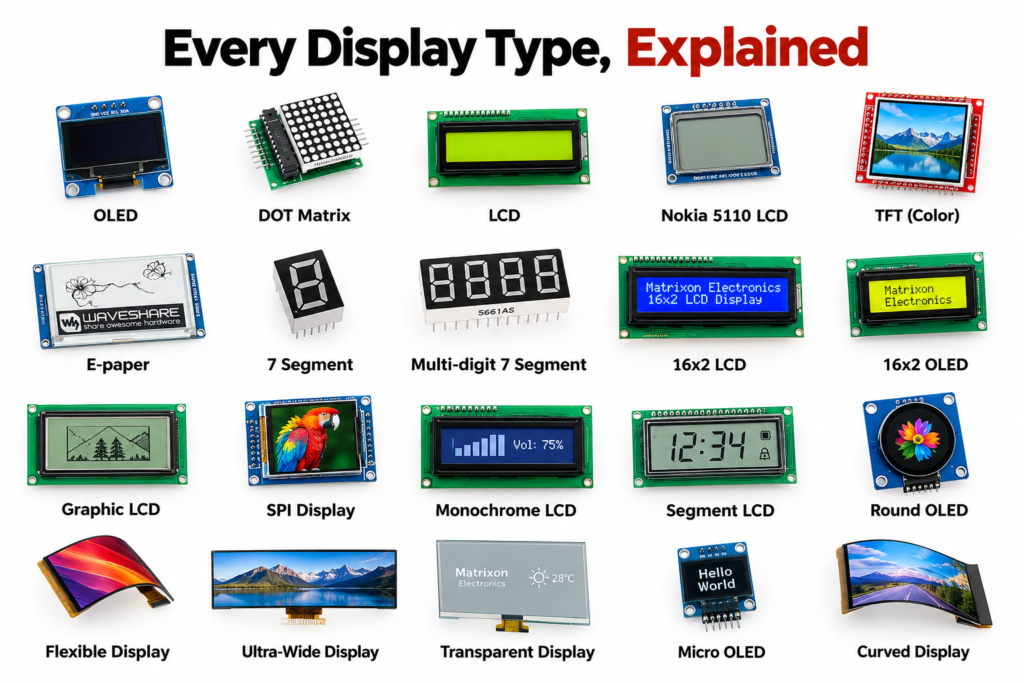
This guide breaks down every major display type you’ll run into as a maker – how each one works, where it shines, and which one actually fits your next project.
What Is a Display, Really?
At the simplest level, a display is just a grid of tiny elements – pixels, segments, or dots that can be switched on, off, or to a color, and a controller chip that tells each one what to do. The differences between display technologies come down to how those elements are switched: some rely on liquid crystals bending light, some emit their own light through organic compounds, and some just reflect ambient light like paper. That one distinction emissive vs reflective, and how the “on” state is created explains almost every trade-off you’ll read about below.
The Main Display Types
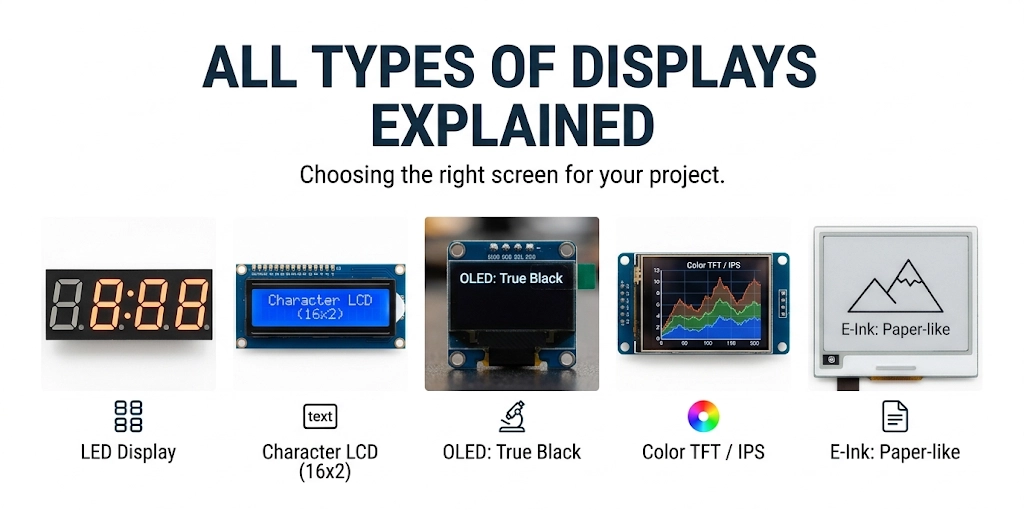
1. Seven-Segment Displays
The oldest and simplest type – seven LED bars arranged to form numbers (and a few letters). You’ll find these in digital clocks, multimeters, and battery indicators. They’re cheap, extremely readable from a distance, and dead simple to drive with a few GPIO pins or a driver IC like the 74HC595.
Best for: Numeric-only readouts – voltage, temperature, counters.
2. Character LCDs (16×2, 20×4)
The classic blue-and-white (or green) screens with a fixed grid of character cells, almost always driven by the HD44780 controller. They’re not flashy, but they’re bulletproof, cheap, and perfect when you just need to print text and numbers.
Best for: Menus, sensor readouts, status messages on Arduino projects.
3. Graphic LCDs
Similar technology to character LCDs, but instead of fixed character cells, every pixel is individually addressable – so you can draw shapes, icons, and custom fonts. More flexible, but also more code and more current to drive.
Best for: Simple graphs, icons, and custom UI on a budget.
4. OLED Displays
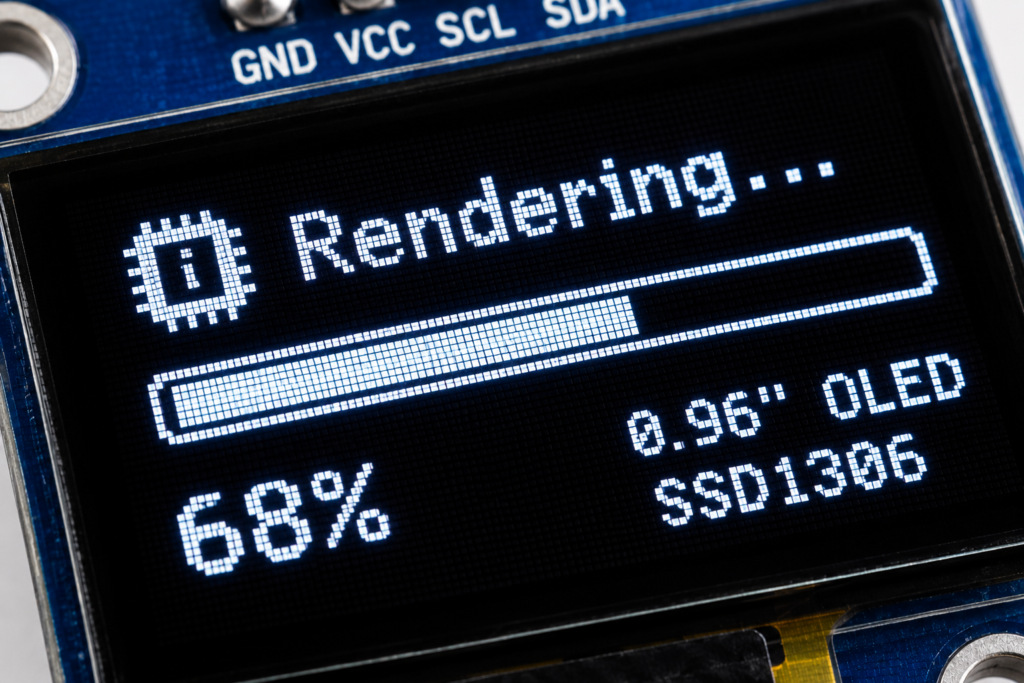
OLED (Organic Light-Emitting Diode) panels don’t need a backlight – every pixel emits its own light. That means true blacks (the pixel is simply off), excellent contrast, and low power draw when displaying mostly dark content. The 0.96″ SSD1306 is the module nearly every maker starts with small, crisp, and dead simple over I2C.
Best for: Compact, high-contrast readouts on battery-powered projects
5. TFT / IPS Color Displays
Thin-Film Transistor LCDs give you full color, and IPS variants add wide viewing angles on top of that. They’re what you’ll find in phone screens and small color HMIs. Communication is usually over SPI, and they need a lot more RAM and processing power than a simple character LCD.
Best for: Full-color dashboards, camera viewfinders, GUIs on ESP32 or STM32 projects.
6. E-Ink / E-Paper Displays
E-Ink panels use charged particles that physically flip between black and white and stay in that position – no power is needed to hold an image, only to change it. That’s why e-readers can run for weeks on a charge. The trade-off is a slow refresh rate, so they’re a poor fit for anything that updates quickly.
Best for: Low-power status displays, price tags, weather stations that update once every few minutes.
7. LED Dot Matrix / Segment Arrays
Grids of individual LEDs, often driven by chips like the MAX7219, that form scrolling text or simple graphics. Bright, cheap, and readable in daylight, but power-hungry compared to LCD or e-paper.
Best for: Scrolling messages, retro-style readouts, high-visibility indicators.
How to Choose: The Four Questions That Matter
- How much power do you have? E-Ink and OLED (dark UI) sip power. TFT and LED matrix drink it.
- How fast does it need to update? Video or fast graphs rule out e-paper. Anything static favours it.
- Color or monochrome? If you don’t need color, monochrome OLED or character LCD will save you cost, RAM, and code complexity.
- What interface does your microcontroller support? I2C displays (like most small OLEDs) use just two data pins, which is ideal when GPIOs are tight on an ESP32 or Arduino Nano.
Real World: Wiring an OLED to Arduino
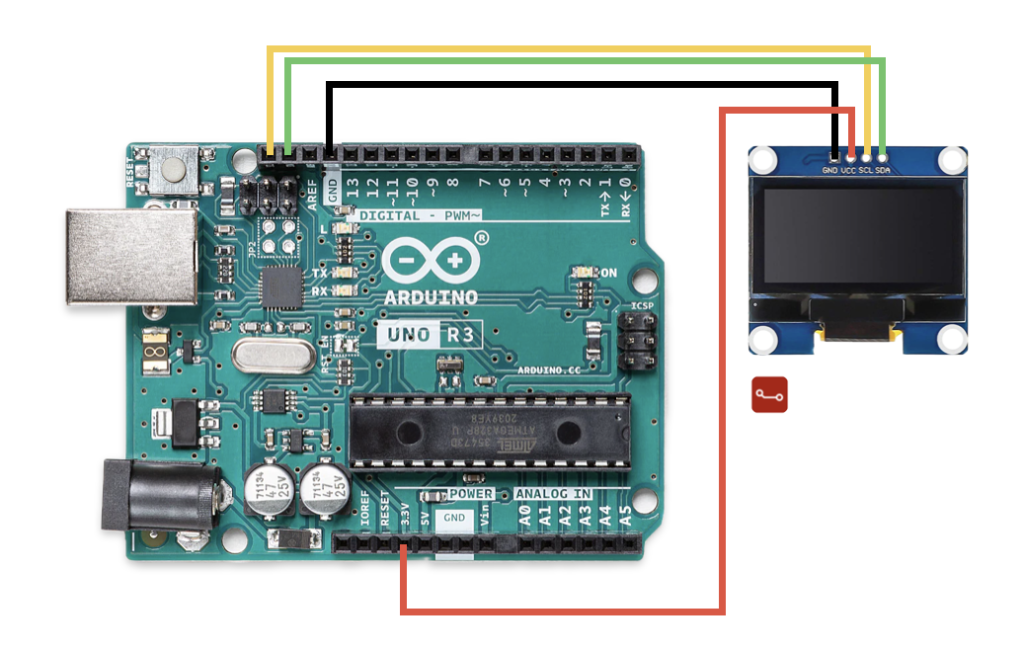
Most small OLED modules communicate over I2C, which means only four wires: VCC, GND, SDA, and SCL. Here’s a minimal example using the popular Adafruit SSD1306 library:
#include <Wire.h>
#include <Adafruit_GFX.h>
#include <Adafruit_SSD1306.h>

Adafruit_SSD1306 display(128, 64, &Wire, -1);

void setup() {
  display.begin(SSD1306_SWITCHCAPVCC, 0x3C);
  display.clearDisplay();
  display.setTextColor(SSD1306_WHITE);
  display.setCursor(0, 0);
  display.println("Hello World");
  display.display();
}
void loop() {}
Matrixon Tie-In
If you’re just getting started with displays, the 0.96″ SSD1306 OLED Display Module (I2C, 128×64) is one of the easiest ways to add a screen to any Arduino or ESP32 project – small footprint, low power draw, and a huge community of libraries and examples to lean on.
Pairing a display with battery-powered projects? The MX1BM1 – Battery Level Monitor Module is a natural companion – read the voltage on an ADC pin and print the battery percentage straight to your OLED or character LCD.
Frequently Asked Questions
What’s the difference between LCD and OLED?
LCD panels use a backlight shining through liquid crystals to form an image, while OLED panels emit their own light per pixel – giving OLED true blacks and better contrast, but LCD is usually cheaper and less prone to burn-in over time.
Which display uses the least power?
E-Ink displays use the least power overall because they only draw current when the image changes, then hold it with zero power. For displays that update frequently, a monochrome OLED with a mostly dark background is the next best option.
Can I run a color TFT display on an Arduino Uno?
Yes, but expect to be tight on RAM and speed – TFT displays need more memory to buffer graphics than an Uno has to spare. An ESP32 or STM32 board handles color TFTs far more comfortably.
Do all displays need a library to work with Arduino?
Most graphic displays (OLED, TFT, graphic LCD) need a driver library like Adafruit_GFX or U8g2 to handle the pixel-level communication. Simple seven-segment and character LCDs can technically be driven with raw pin toggling, though a library still makes life easier.
Quick Summary
| Topic | Detail |
|---|---|
| What is a display? | A grid of pixels or segments controlled by a driver chip to show text, numbers, or graphics |
| Main types | Seven-segment, character LCD, graphic LCD, OLED, TFT/IPS, E-Ink, LED dot matrix |
| Lowest power | E-Ink (holds image with zero power) and dark-background OLED |
| Matrixon Product | MX1BM1 – Battery Level Monitor Module, 0.96″ SSD1306 OLED Display Module |
| Learn More | matrixonelectronics.com |
🔗 Explore more electronics resources at Matrixon Electronics
🛠️ Free calculators & tools: tools.matrixonelectronics.com
🛒 Get the module used in this guide: 0.96″ SSD1306 OLED Display Module